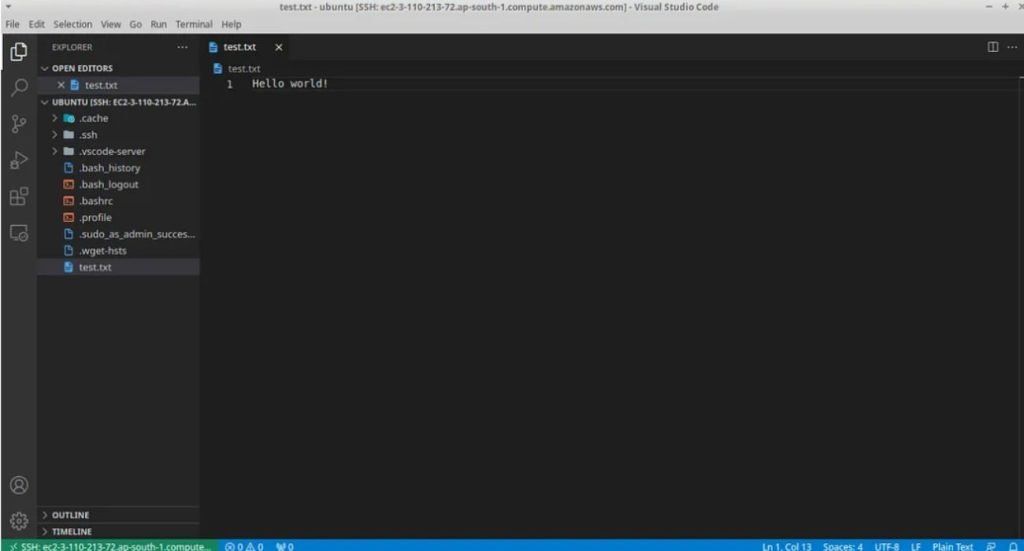
Editing files on EC2 using tools like Vim or Nano can be difficult. In this situation, we may connect the vscode editor to the EC2 instance and edit the files remotely. Let’s see how to accomplish it.
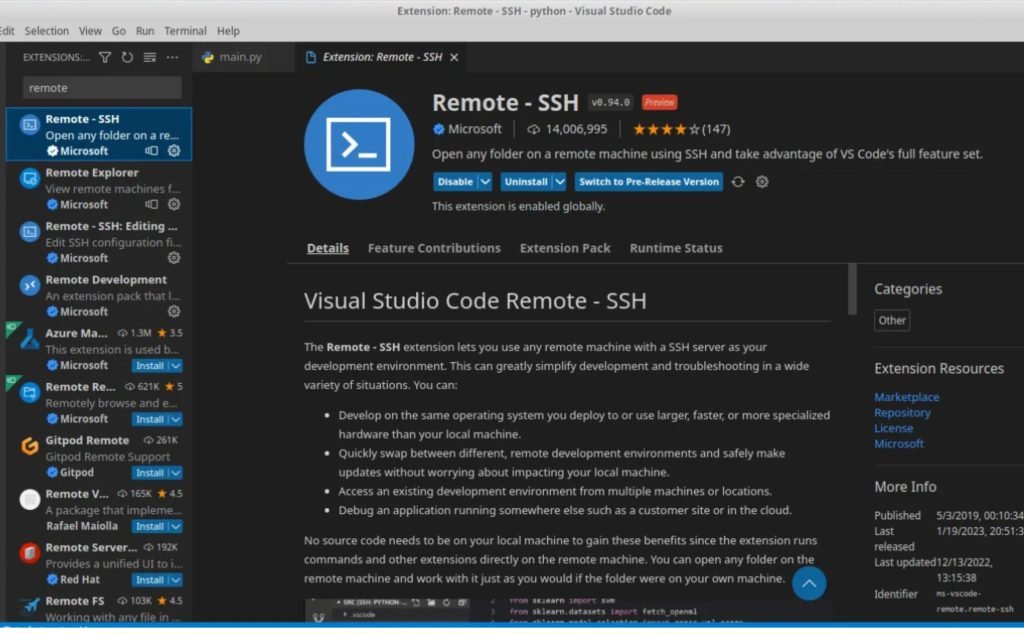
First, we’ll establish an EC2 instance and preserve its key-value pair. We’ll utilize this key-value pair to connect to the EC2 instance. We also need to get the Remote-SSH add-on for the Visual Studio code editor.
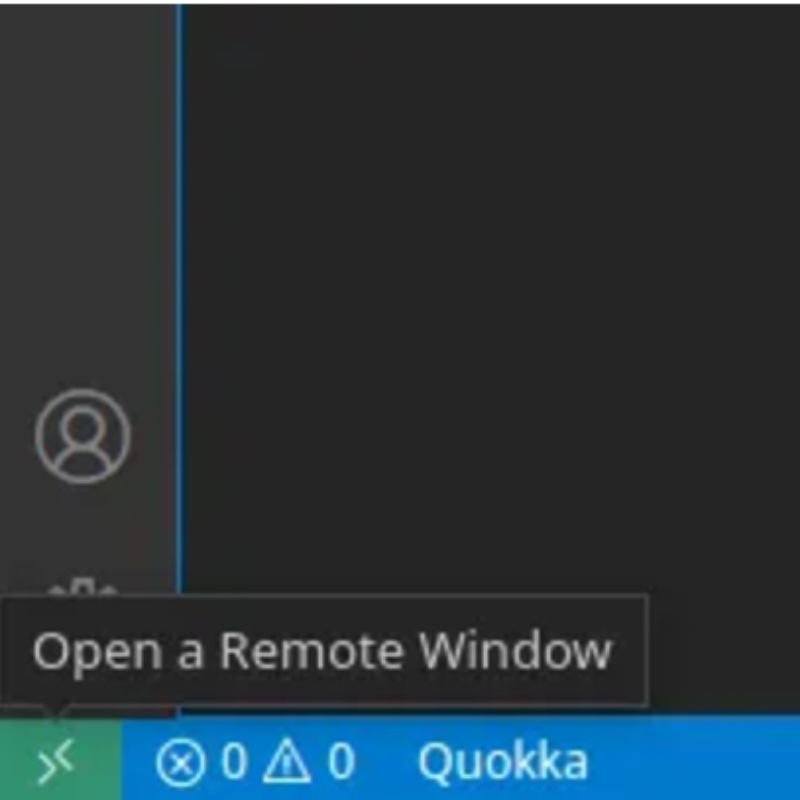
The aforementioned extension will also download several other necessary extensions. After downloading the extension, we can find a “Open Remote Window” tab in the bottom left of the editor.
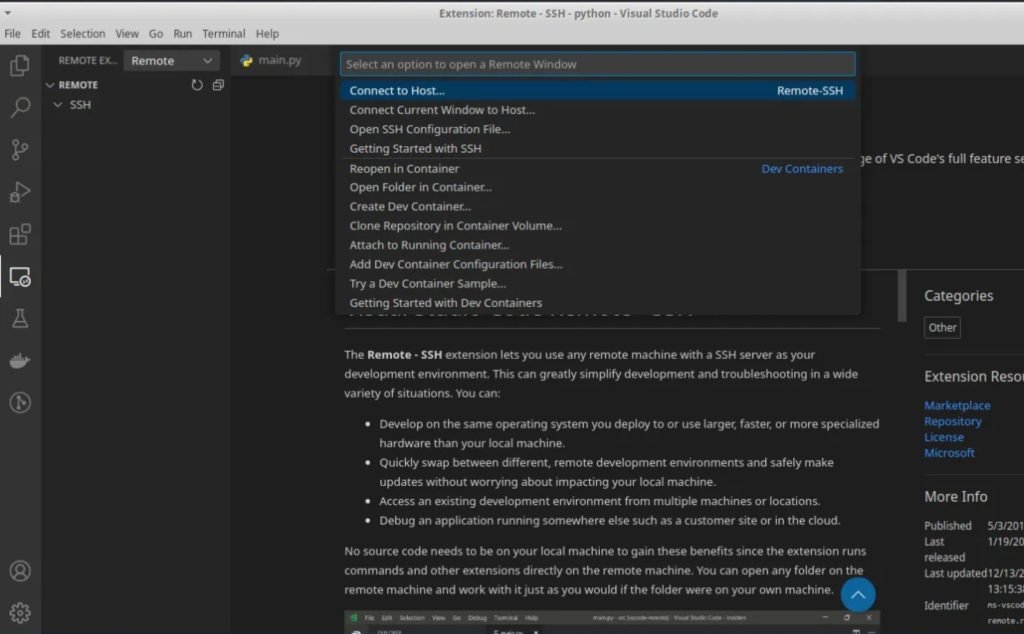
Once clicked, we’ll see the following list of possibilities.
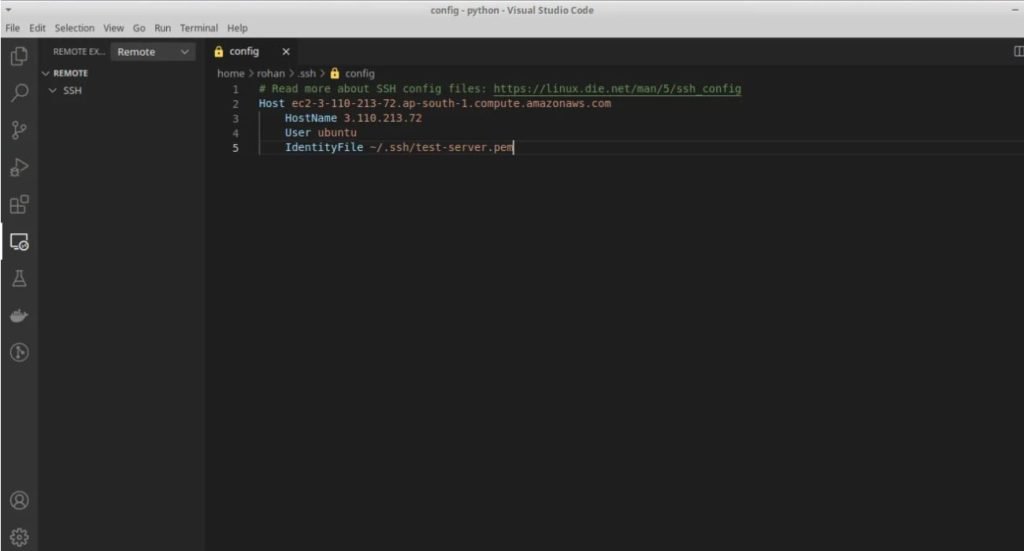
In the list of options, pick ‘Open SSH Configuration File’. I’ll choose /home/USERNAME/.ssh/config to save the location of the key-value pairs received when the ec2 instance was established. It will look something like this.
We forgot to set permissions for the key-value pairs. We can configure it with the following command.
chmod 400 file-name.pem
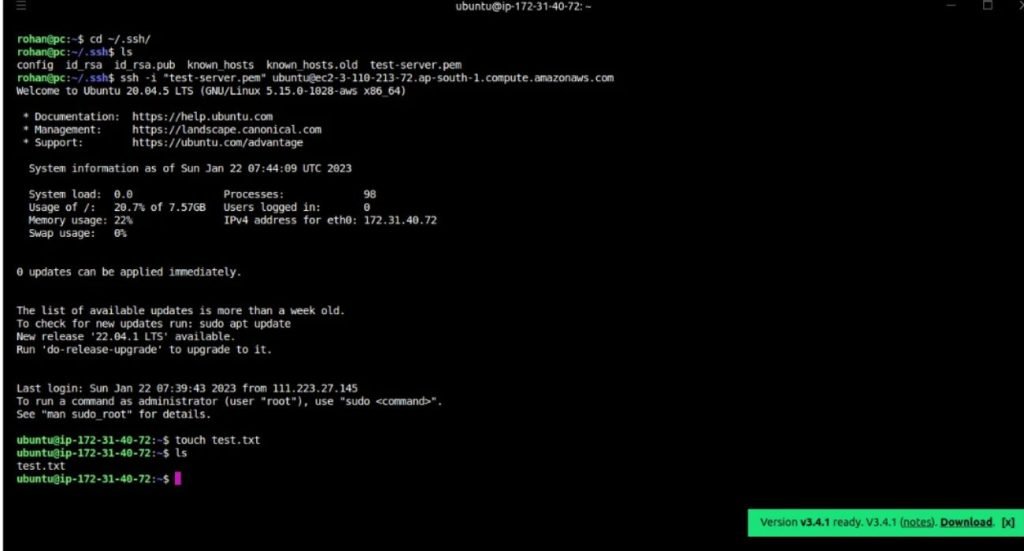
Now we’ll connect to our server and generate a file.
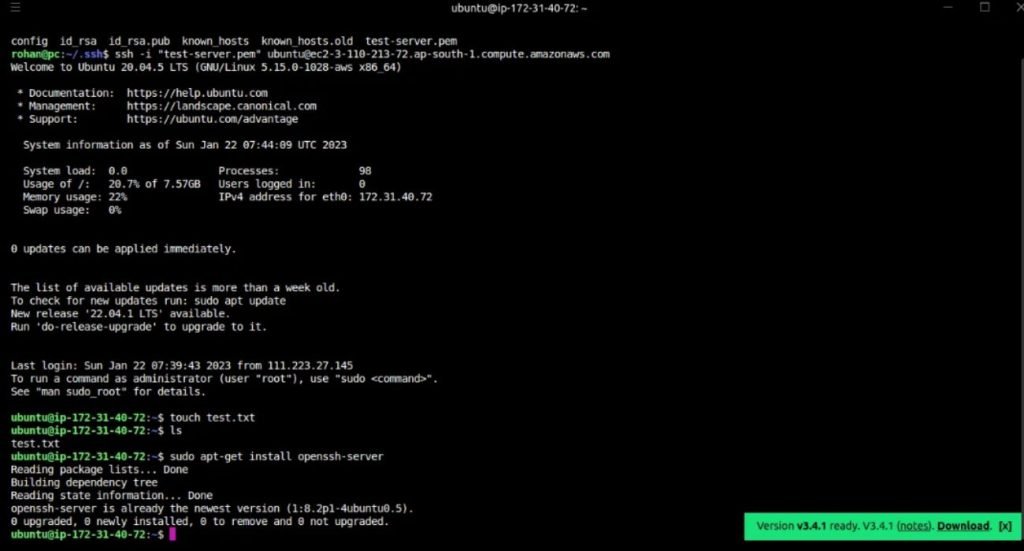
We also need to download the OpenSSH server on the EC2 instance.
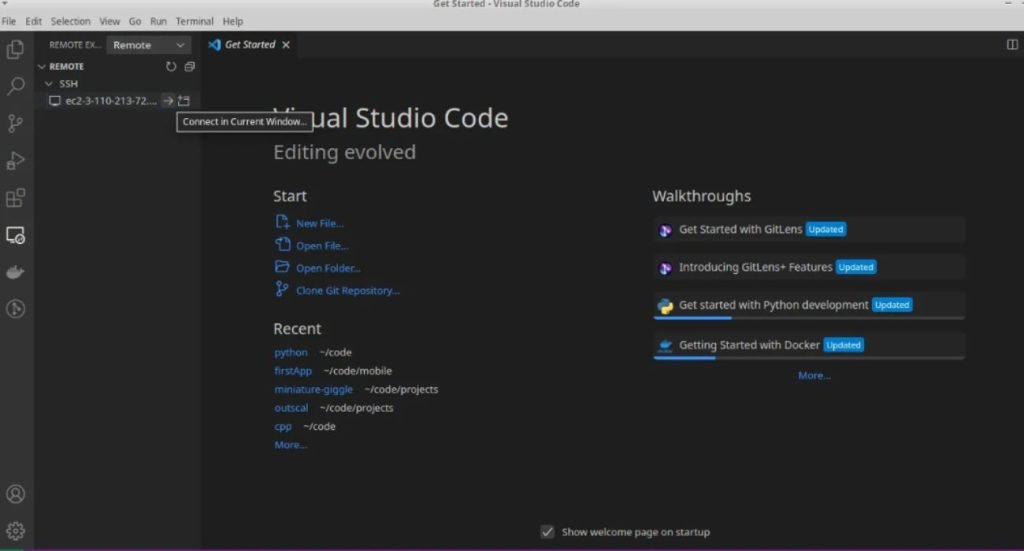
In our example, it has already been installed on the server. Now it’s time to connect vscode to our ec2 instance and change the files we created. We will restart the vscode editor, select the Remote Explorer tab on the left panel, and connect to the server.
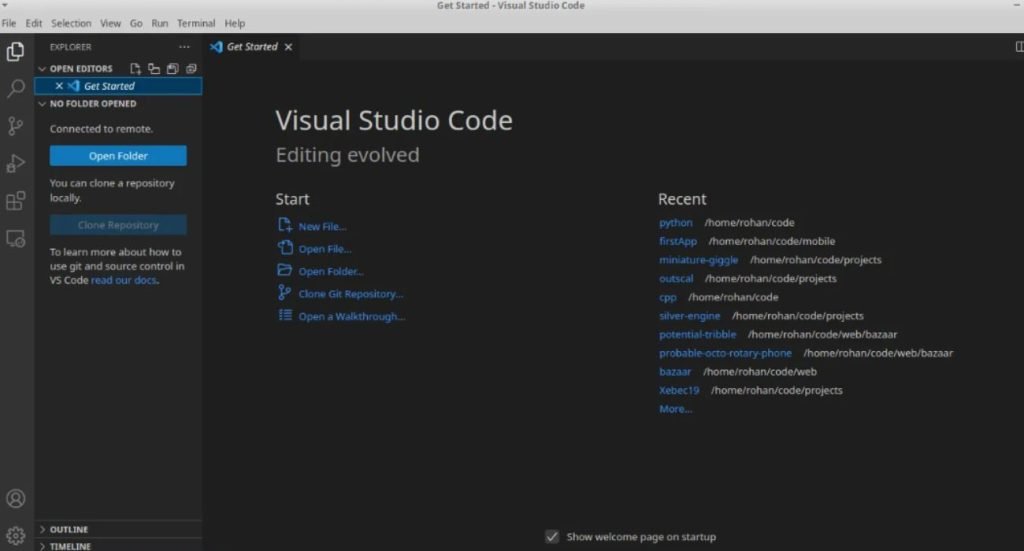
Once linked, we must locate and open our files there. So, we will select the Explorer tab of the Open Folder option
Now, we’ll edit the file.
To validate that the file has been edited, we will print its contents in the terminal.
So, we successfully edited a file on the server with vscode. I hope this article helps you.